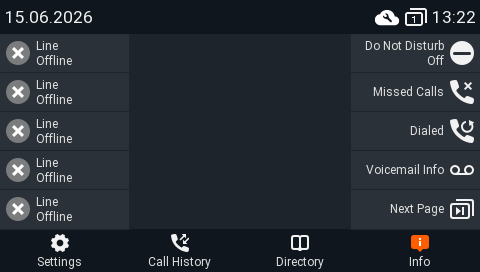

FAQ Desktop - Device management
Overview
From software 10.1.226.13 Device management using GRAPE is possible.
Device Manager is a service accessible via the GRAPE portal, comprising a collection of advanced device management features tailored to meet the needs of modern businesses. From monitoring device status and setup to scheduling tasks, our platform equips administrators with the tools they need to effectively manage their fleet of Gigaset phones.
Stay in full control
- Easily monitor, manage and diagnose phones remotely.
Increase efficiency
- Automate tasks, schedule updates, and resolve problems swiftly.
Reduce costs
Avoid unnecessary on-site visits - this saves costs, ensures faster response times and protects the environment.
Supported by
- P710
- P810
- P82X
- P85X
Not supported by P150
Key features
Real time information
- Uptime
- Firmware version
- Network
- LAN IP address
- WAN IP address (Partial due to customer data protection)
- Network port: connected/speed
- PC port: connected/speed
- SIP Registration status
- Memory status
Troubleshooting
- Reboot device
- Collect syslog traces
- Collect SIP traces
- Download all settings (No Passwords)
- Download modified settings (No Passwords)
- Firmware update
- Factory reset
- Provisioning of parameters, even if provisioned by platform
- Bulk actions
How to activate device management
To be data secure compliant, device management must be activated by the user.
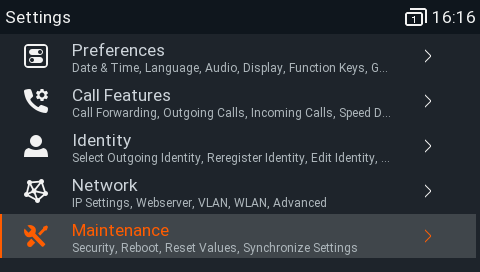
Open the device Settings menu, select Maintenance.
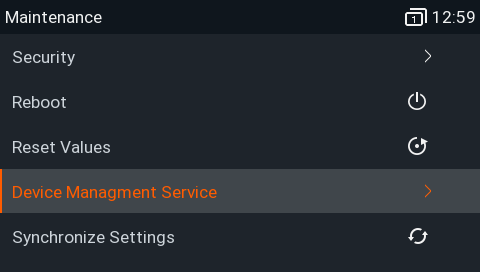
Select Device Managment Service
By default the service is disabled
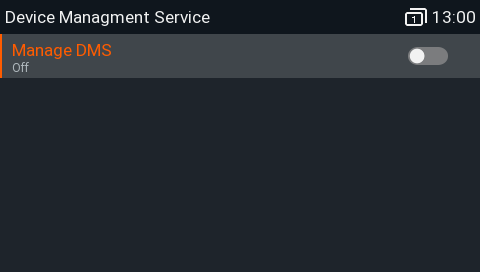
Enable Manage DMS
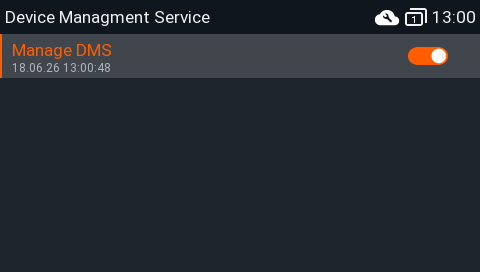
Device management is enabled for 3 days or until the user switches off DMS.
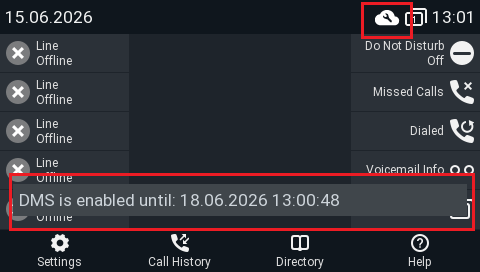
You can see that DMS is enabled via the:
- Status message
- DMS Icon in the top bar
You can disable the Status message via GRAPE, device settings menu or Auto-provisioning by removing the option DmsEnabled in the settings below:
status_msgs_that_show_directly=StatusLineSystemMessage:3 NoHeadsetDetected:3 PhoneWantsReboot DmsEnabled UxmUpdateRequired PhoneProvisioningStarting PhoneProvisioningInProgress PhoneHasIncomingPublicAnnouncement EthernetUnplugged PhoneHasFirmwareUpdate FirmwareUpdateFailed PhoneWantsToUpdate PhoneHasDisabledSipStack VpnActive PhoneHasVpnError SbcActive PhoneHasSbcError PhoneHasLowMemory CurrentIdentityIsNotRegistered PhoneIsWaitingForCallCompletion CurrentIdentityIsDnd RingerIsSilent AnonymousIdOn PhoneWaitsOnNtpServer CallRecordingState ActiveLocations RemoteOfficeEnabled PhoneHasNoHttpPassword ServerMessageToBeShownDirectly EmergencyCallNumbersMisconfigured PhoneHasMissedCalls CurrentIdentityHasVoiceMessages CurrentIdentityHasTextMessages TryParking:5 SxmConnected:5 ContactSaved:2 Hoteling:2 HidConnecting:10 HidConnected:5 UxmConnected:5 ExpDeviceCabelingBroken ExpDeviceLimitExceeded SipWarningMessage:3 WlanStatus WlanConnected:3 DispositionCodeSent:3 DispositionCodeNotSentMismatch:3 UsbMassStorageConnected:3 UsbMassStorageDisconnected:3 UsbMassStorageSafeToRemove:3 UsbRecordingTerminatedDriveFull:3 UsbRecordingCallTerminated:3 UsbRecordingWaitForProcessing:5 UsbRecordingNoUsbDriveDetected:3 UsbRecordingProcessingComplete:3 UsbRecordingTerminatedMaxFileSize:3 UsbRecordingTerminatedOtherError:3 UsbRecordingAbortedByConference:3 UsbRecordingCannotRecordConference:3 UserInputOutOfRange:3 WifiAssociationStatusMessage1:3 WifiAssociationStatusMessage2:3 UsbWifiUnavailable:3 UsbWifiConnected:3 UsbWifiDisconnected:3
status_msgs_that_are_essential= DmsEnabled UxmUpdateRequired PhoneHasNoHttpPassword PhoneHasIncomingPublicAnnouncement PhoneIsLocked PhoneHasDisabledSipStack EmergencyCallNumbersMisconfigured CurrentIdentityIsNotRegistered PhoneIsWaitingForCallCompletion CurrentIdentityIsDnd RingerIsSilent CurrentIdentityForwardsAlways ServerMessageToBeShownDirectly IPv4Conflict
Then only the DMS icon in the top bar is visible.