
FAQ - Client certificates
Valid for: | N530 | N610 | N670 | N770 | N870 | N870E | Embedded Integrator | Virtual Integrator |
Introduction
We as Gigaset deliver an factory installed client certificate that can be used to integrate the device into the customer network.
We as Gigaset do not take for the full live-cycle, responsibility for the client certificate security. The factory installed client certificate can be used for onboarding the device in the customer network.
If more security is required, you can create your own client certificate and authorization authority.
The certificate can be updated via auto-provisioning and the web-interface.
- Client certificate history
- Show installed client certificates
- Client certificate device software < 2.57
- Upload client certificates via web-interface
- Autoprovisioning
- How to generate your own Client certificates
Client certificate history
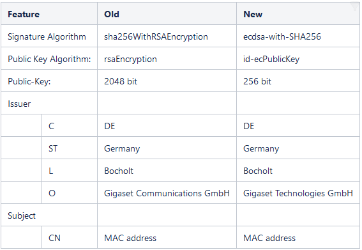
Device software >= 2.61 | Device generates a new client certificate. Client certificates are mainly used for 2-way provisioning authentication. New Gigaset Technologies server certificates needs to be installed on the provisioning server to support software 2.61 or higher. | New client certificate information:
|
Device software < 2.57: | Factory installed client certificate that is used for all services:
| |
Device software 2.57 | Factory installed client certificate that is used for:
2e client certificate with up to date security that is used for:
| Change required due to open SSL upgrade from version 1.1.1 to version 3.0 New client certificated added with up to date security, the existing factory installed certificate can still be used to no brake auto-provisioning behind existing installations. |
Device software 2.59 | Factory installed client certificate that is used for:
2e client certificate with up to date security that is used for:
| Improvement due to firmware update via auto-provisioning must also use the existing factory installed certificate. |
Upcoming software | New client certificate with up to date security that is used for:
2e client certificate with up to date security that is used for:
| Existing platforms supporting client certificate-based authentication auto-provisioning must update there Gigaset server certificates to support also the new client certificate. If not done, then auto-provisioning of these devices with the newer firmware is not working any-more. |
Show installed client certificates
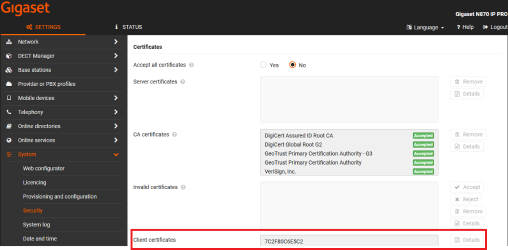
From software version 2.62 or higher, the client certificates are visible in the web-interface.
- Go to: SETTINGS -System - Security
- Accept all certificates: No
- The field Client certificates shows the installed client certificates
- Select the client certificate and click on Details to display more information
Client certificate device software < 2.57
Default, Factory installed Client certificates are pre-installed on the device.
The Factory installed Client certificates can be found here:
/config/ssl/gigaset_factory_key.pem
How to check the CN:
There are 2 types of client certificates possible:
- CN = Einstein2
- CN = <MAC address> of the device example: CN = 7C2F80C6E5C2
The correct client certificate will have CN = <MAC address>
You can the check the CN using the following openssl command. You can execute this on the Nx70 (CLI access) or on external Linux PC, replace IP address with the IP address of your DECT device)
Server certificate
subject=C = DE, ST = DE, L = Bocholt, O = Gigaset Communications GmbH, OU = PRO, CN = Einstein2
issuer=C = DE, ST = Germany, L = Bocholt, O = Gigaset Communications GmbH, OU = Certificate Authority, CN = Gigaset.net
Other example:
openssl s_client -showcerts -connect 192.168.178.190:5061 2>/dev/null | grep -A3 "Server certificate"
Server certificate
subject=C = DE, ST = Germany, L = Bocholt, O = Gigaset Communications GmbH, CN = 7C2F80C6E5C2
issuer=C = DE, ST = Germany, L = Bocholt, O = Gigaset Communications GmbH, OU = Certificate Authority, CN = Gigaset.net
Upload client certificates via web-interface
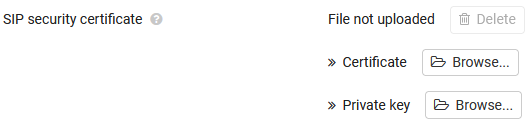
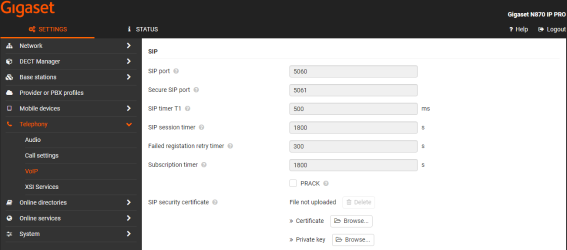
The Client certificates can be uploaded from the web-interface, go to: SETTINGS - Telephony - VoIP.
Example: How to generate your own Client certificates
You can generate your own Client certificates using a Linux machine.
To create self-signed client certificate you have to follow the instructions below. If you have own CA you can skip the first step.
1. Generate CA certificate (ca.crt) and key (ca.key):
openssl req -new -x509 -days 365 -key ca.key -out ca.crt
and follow the on-screen instructions.
2. Generate Client Key, Certificate Signing Request, and Signed Client Certificate:
openssl req -new -key N870.key -out N870.csr
openssl x509 -req -days 365 -in N870.csr -CA ca.crt -CAkey ca.key -set_serial 01 -out N870.crt
openssl rsa -in N870.key -out N870_key.pem
3. To check the content of the certificate:
Certificate:
Data:
Version: 1 (0x0)
Serial Number: 1 (0x1)
Signature Algorithm: sha256WithRSAEncryption
....
As Common Name you can put the MAC address of the device (with capital letters).
You can download the N870.crt and N870_key.pem file using WinSCP.
Go to: SETTINGS - Telephony - VoIP to upload N870.crt and N870_key.pem files.