

FAQ - Firmware update
Valid for: | N530 | N610 | N670 | N770 | N870 | N870E | Embedded Integrator | Virtual Integrator |
Introduction
Regular updates to the firmware for the DECT manager and base stations can be found on this wiki.
The firmware can be updated via:
- Auto-provisioning
- Web-interface via upload firmware file
- Web-interface via URL to firmware file
- Web-interface, Automatic: check online for new firmware (New in 2.57.0 or higher)
- GRAPE
Upgrade and Downgrade are supported.
- Upgrade to any newer version keeps the current settings
- Downgrade to previous version using the settings of the previous version (using backup of previous version stored in the device)
- Downgrade to any other version, device does a factory reset
Downgrading a device to a significantly outdated software version is not recommended, as it can result in unpredictable behavior or place the device into an unknown error state. Older software may be incompatible with the current hardware, firmware, or security components, leading to system instability, data corruption, or failure to boot properly.
Web-interface
Upload the software via the web-interface:
The firmware is stored on the DECT manager and distributed to the base stations.
In the web-interface go to: SETTINGS - System - Firmware
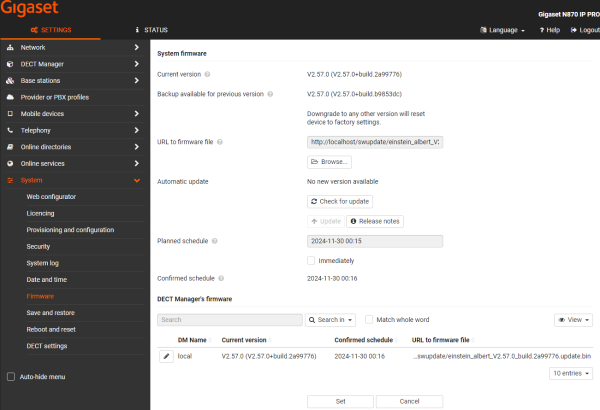
- Click Browse... and select the firmware file from your computer‘s file system.
- Click Upload to upload the firmware file.
- When ready, the pop-up "Press SET to start update schedule" will appear.
The URL to the firmware file will change to the local storage: http://localhost/swupdate/<firmwarefile> - Select Immediately if you want to start the update now.
- Scroll down and press SET
- The firmware update will start after a few minutes.
From software 2.32 or higher you see an icon if the firmware update is started.
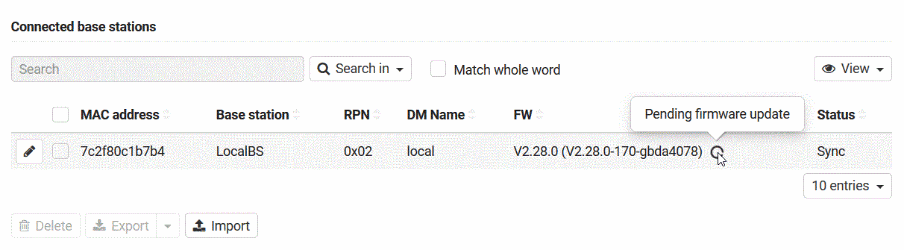
Firmware update from an HTTP server
If you do not have the file on your PC, you can also enter the URL of the firmware file that is stored on an external HTTP server. When the firmware update is started, all the devices will download the firmware from this external server.
Parameter | Description |
|---|---|
Current version | Shows the current firmware version of the Integrator/DECT manager on which you are logged in. |
Backup available for previous version | You can downgrade the firmware by installing any older version. When installing a new firmware the system automatically creates a data backup for the recent firmware. If you later downgrade to this version the data backup will be installed on the system. This way you have a downgrade to previous firmware version and data settings. Downgrade to any other version will reset the device to factory settings. |
URL to firmware file | In the text field specify the URL of the configuration server where the firmware is located or click Browse... and select the firmware file from your computer‘s file system. |
Planned schedule | At a specific date: Deselect the check box Immediately Enter the exact start time in the format: YYYY-MM-DD HH:mm |
Confirmed schedule | Shows Immediately or the date for the next planned firmware update. |
Automatic Firmware update: From software 2.57.0 or higher, we have the option to automatic search online for new Firmware.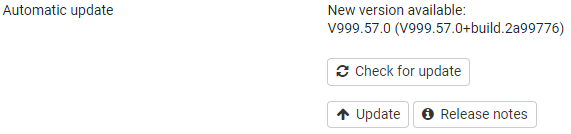
- Supported by the N610/N670/N870/N870E/Embedded Integrator, not supported by the Virtual integrator
- Device will search at the Gigaset firmware update server for the latest firmware
- In this directory there should be one firmware file with the name: ipdect.update.bin
- The option "Release Notes" will open the wiki page: Release notes N530N610N670N770N870N870E
- Press the button "Check for update", the device will do a partial Content download (± 3000 bytes) to check if:
- Firmware is older
- Firmware is the same
- Firmware is newer ("Update" button will become active, press to start upgrade)
Auto-provisioning | ||
|---|---|---|
Parameter | Value | Description |
SystemSettings.global.FirmwareCheckURL | Firmware URL | URL to the firmware server |
SystemSettings.global.ReleaseNotesURL | Release notes URL | URL to the Release notes |