
FAQ - Microsoft Teams Integration

| Valid for: | N610 | N670 | N770 | N870 | N870E | Embedded Integrator | Virtual Integrator |
Here we describe how to configure the Gigaset N610/N670/N770/N870/N870E and P85X(B)W/P82X/P810(B)/P710 to integrate with Microsoft Teams.
We assume that it is installed by an qualified technician who have the knowledge about the Gigaset devices and Microsoft Teams.
- 1. Supported features
- 2. Gigaset prerequisites
- 3. Microsoft prerequisites
- 4. Documentation
- 5. Gigaset DECT system, how to configure
- 6. Gigaset Desktop, how to configure
- 7. FAQ
1. Supported features
| Make and receive basic calls | Users can make/receive calls:
The DECT systems acts as a Teams endpoint. Inbound calls will also be forked to the user’s SIP device |
| Multiple simultaneous calls | A user in a call can put the call on hold to make or receive other calls. A user can also conference two calls |
| Do Not Disturb (DND) | A user can set do not disturb on the device so that the device will not ring for incoming calls. This has no impact on the user’s status on all other Teams endpoints |
| Hold/Resume and Mute/Unmute | A user can hold and resume or mute and unmute a call by using the features for those actions on the device |
| Voicemail | Users can listen to electronically stored voice messages that callers leave for them (Dial *99* to access the VM box) |
| Message waiting indicator | Users can receive notifications that alert them when they have new voicemail messages |
| Sign-in and sign-out | Users can sign in and sign out of Teams
|
| DTMF | Users can press number keys to provide input during interactive voice response calls |
| Teams meetings | A user can join a Teams meeting by dialing the meeting access number |
| Call transfers | Users can transfer calls. SIP Gateway supports both blind and consultative transfers |
Call forwarding / Simultaneous ring | A user can set forwarding rules (always, on timeout, and busy) for the device, this can be done on the:
|
| Call Waiting | During an active call and another call comes in:
|
| CLIP | Display the phone number for incoming can outgoing calls |
| Multiple devices | The user can sign-in on more then one SIP device and Teams client applications On the same DECT system, login on 1 DECT handset is supported. (Incoming call is only signaled to one DECT handset) |
| Presence | Locally presence status information like:
|
| Security | SIP and SRTP is encrypted, makes eavesdropping impossible |
| Shared line | Forking with other Microsoft Teams supported devices and/or soft clients |
| Easy dialing internal numbers | Via the DECT area code solution, internal numbers can be used as the system will convert it to the full external Teams phone number |
| Auto-provisioning | Easy installation via auto-provisioning, can be started via:
|
| Language support | Each handset can have it's own language. |
2. Gigaset prerequisites
- N610, that supports up to 20 DECT handsets
- N670, that supports up to 20 DECT handsets
- N770, that supports up to 100 DECT handsets
- N870(E), that supports up to 20.000 DECT handsets
- Gigaset PRO DECT handset (Also the Unify OpenStage M3 is supported)
- P85X(B)W
- P82X
- P810(B)
- P710
- No Gigaset licenses are needed
3. Microsoft prerequisites
- Microsoft SIP gateway is enabled in your tenant
- Microsoft Teams certified phone → Gigaset N610 / N670 / N770 / N870 / N870E/P85X(B)W/P82X/P810(B)/P710
- A license for Phone System (via E5 or a standalone license)
You need one of the following prerequisites:
- Microsoft Teams shared device license enabled for the user (Common Area Phone license)
- Microsoft Teams user must have a phone number (Microsoft Teams Calling Plan, Direct Routing, or Operator Connect)
4. Documentation
| Gigaset N610 IP PRO | N610: Overview of the device with links to Datasheets, manuals and FAQ |
| Gigaset N670 IP PRO | N670: Overview of the device with links to Datasheets, manuals and FAQ |
| Gigaset N770 IP PRO | N770: Overview of the device with links to Datasheets, manuals and FAQ |
| Gigaset N870 IP PRO | N870: Overview of the device with links to Datasheets, manuals and FAQ |
| Gigaset N870E IP PRO | N870E: Overview of the device with links to Datasheets, manuals and FAQ |
| Gigaset IP DECT release notes | Release notes N530N610N670N770N870N870E |
| Supported DECT handsets | Supported DECT Handsets |
| Gigaset P85X(B)W | Gigaset P85X(B)W: Overview of the device with links to Datasheets, manuals and FAQ |
| Gigaset P82X | Gigaset P82X: Overview of the device with links to Datasheets, manuals and FAQ |
| Gigaset P810(B) | Gigaset P810(B): Overview of the device with links to Datasheets, manuals and FAQ |
| Gigaset P710 | Gigaset P710: Overview of the device with links to Datasheets, manuals and FAQ |
| Microsoft Teams compatible devices, see at the bottom of the page for the Gigaset DECT | https://learn.microsoft.com/en-us/microsoftteams/sip-gateway-plan |
| Microsoft Teams, set up common area phones | https://learn.microsoft.com/en-us/microsoftteams/set-up-common-area-phones |
5. Gigaset DECT system, how to configure
Here we describe the configuration/installation of the Gigaset DECT system to be used together with teams.
Firmware upgrade: Upgrade the system to the firmware 2.52 or higher
Option 1: First configuration via upload of provisioning file: You need a minimum configuration to start with Microsoft Teams, we have made it easy and created an provisioning file for you.
Download the following provisioning file that contains the settings you need:
!!!Do not modify this file!!!
Click here to download the provisioning file:
| Upload the provisioning file: The provisioning file can be uploaded via the web-interface. Open the Gigaset DECT system web-interface: Go to SETTINGS - System - Provisioning and configuration, click on Browse | 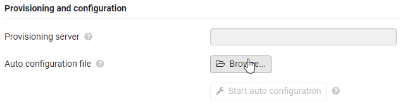 |
| Select the provisioning file, click on Upload. | 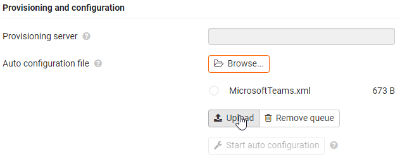 |
| Click on Start auto configuration | 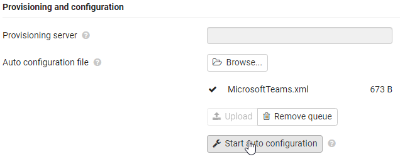 |
Option 2: First configuration via GRAPE In GRAPE:
| 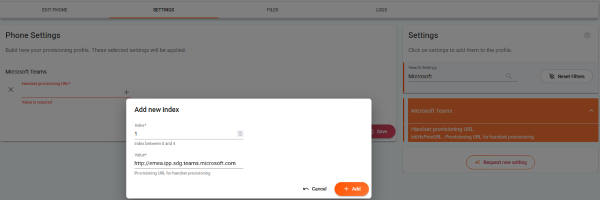 |
| 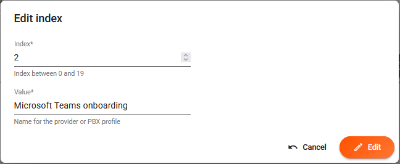 |
Add an DECT handset: Go to: SETTINGS - Mobile devices - Administration Select as VoIP provider "Microsoft Teams onboarding" It can be that you see the VoIP provider "Microsoft Teams onboarding" 2 times, both can be used. |  |
After successful registration, the handset is configured and will show on the display: This is an Microsoft Onboarding SIP account, that is used to sign-in the user account. It is not possible to make or receive calls with this account. | 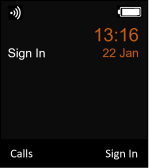 |
5.1 Softkey for Sign-in/out
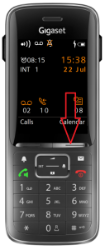
Handsets that have completed the on-boarding, need to be able to Sign-in/out. For this, you need to assign an "Sign In" softkey.
- On the handset, long-press on the left or right softkey to open the Function List
- Go to More functions...
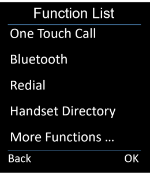
- Select Sign In
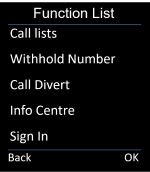
5.2 Handset Sign-in
- For Local Sign-in/out, the user needs to press the Soft Key "Sign In" to start the Sign In procedure.
- On your DECT handset you will see the Microsoft pairing URL and the Pairing code needed to login.
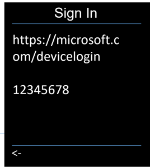 or
or 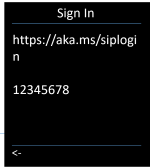 or ??? URL is provided by Microsoft !!!
 - The Sign In process is now done on a PC or device with an internet browser.
Open the pairing URL: showed on your screen
Enter the pairing code: (The code is not case sensitive)
Sometimes you need to login first an then enter the code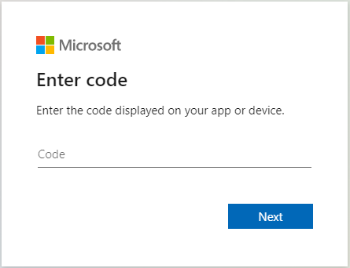
- Click on Next and select your Microsoft account.
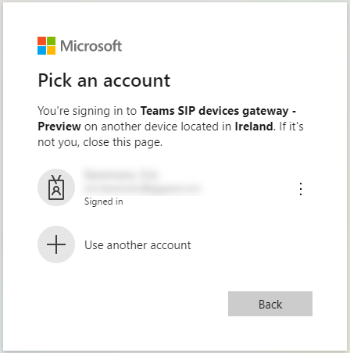
- Microsoft will send an SIP Notify to you system (Onboarding account), that starts the handset provisioning.
It can take a few minutes before provisioning is started. If the procedure is successful, you will see your user-name depends on the user configuration in the display.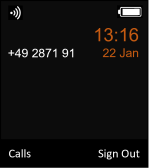
5.3 Handset Sign-Out
- You can Sign Out by pressing the Softkey "Sign Out"
Microsoft will send an SIP Notify to you system, that starts the handset provisioning.
It can take a few minutes before provisioning is started. If the procedure is successful, you will see "Sign In" on the display.
5.4. Increase audio quality (G.722 codec)
By default the audio codec G.711 is used.
If required, an higher audio quality can be achieved by enabling the G.722 codec. (Enabling the G.722 codec will change the maximum of parallel calls to 5 per base)
- In the DECT system, go to: SETTINGS - telephony - Audio - Enable: Wideband with codec G.722
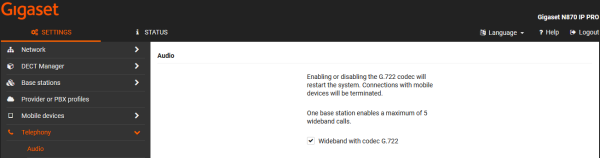
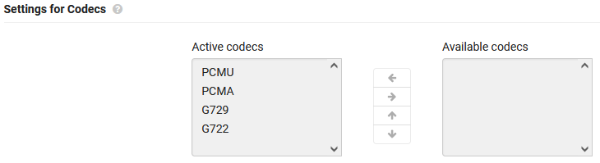
- Activate the G.722 codec for the Provider or PBX profiles with the name - Microsoft Teams signin (Do this for each Provider profile with this name if multiple available)
5.5. Internal number dialing
In Microsoft teams the user has one phone number and that is the external number. For internal calls, the full external phone number must be dialed.
Using the Area code feature in our DECT solution, internal numbers can be dialed where the system will automatically convert this to the full external number.
Example:
Phone number = 0049 2871 1234500 - 0049 2871 1234599
- In the web-interface go to: SETTINGS - Telephony - Call settings
Enter the Area Codes, conform the company number.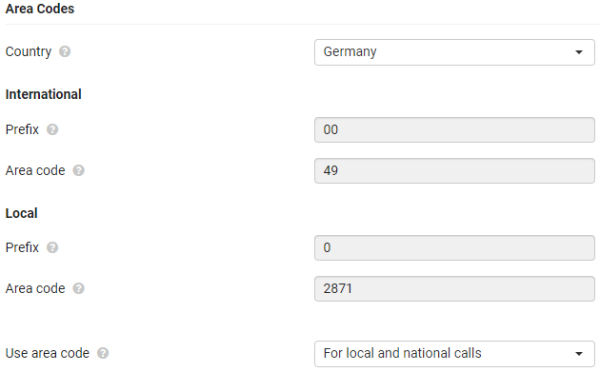
- Instead of dialing the full number example: 0049 2871 1234500
The user can dial 1234500 - If needed, the local Area code can be increased to be able to dial internally using even less digits.
5.6 Auto-provisioning web-interface options
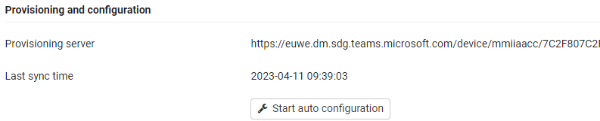
From software 2.53 or higher, the web-interface has the following provisioning options:
- Handset provisioning URL
- Last provisioning request date and time
- Start auto configuration
In the web-interface go to: SETTINGS - Mobile devices - Administration - Edit handset - Provisioning and configuration.
This is only visible for handsets using the Teams provisioning.
6. Gigaset Desktop, how to configure
Open the web-interface of your device. Go to: Setup - Advanced - Update - Setting URL and enter the URL below | 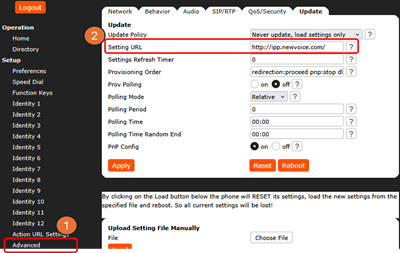 |
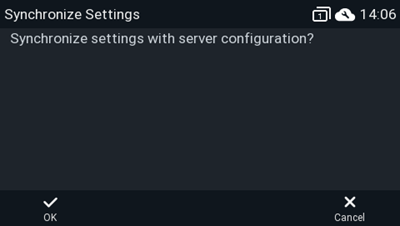
Start auto-provisioning via:
|  |
6.1 Sign-inThe device will be configured by Microsoft and will get an Sign In account. Click on the key Sign In to login with your Microsoft teams account. | 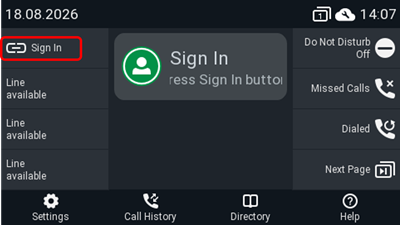 |
| Open a browser and enter the the URL you can see on the display in this example: https://aka.ms/siploginppe | 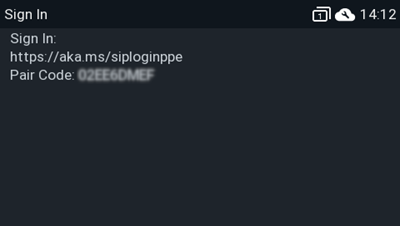 |
Enter the Pair code and press the button Pair. Your device will be configured with you user-account. | 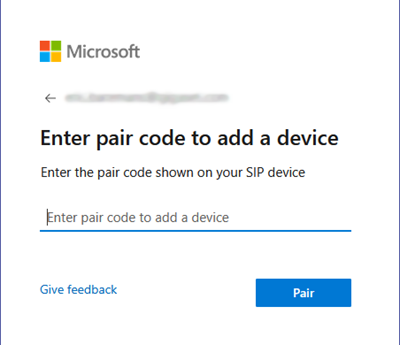 |
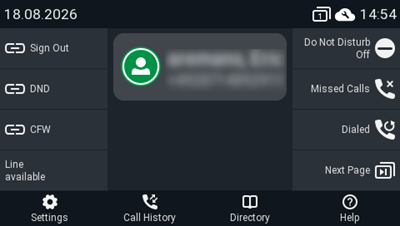
On the display, you will see your name and phone-number, the green icon shows
|  |
6.2 Sign-outPress the Sign out key to logout of MSTeams, you will get an onboarding account to be able | 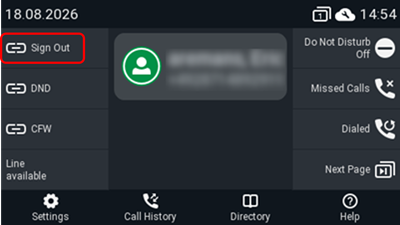 |
7. FAQ
| Which SIP/HTTP user-agent is send? | By default the user-agent contains: FAQ - User agent
Microsoft only wants to see the:
For this solution, the correct user-agent is set via provisioning. |
| When I have an integrator with multiple DECT Managers, do we need to change the user-agent via auto-provisioning so that every device uses the same user-agent? | No, the user-agent is changed by auto-provisioning to send only the device type and software version and is also valid for an integrator solution. |
| What is an Microsoft onboarding SIP account? | Each device that is not logged in Teams, get's an Microsoft Onboarding SIP account. This account offers an active SIP registration to the Microsoft platform. It is not possible to make or receive calls using this account, it is needed to start the Teams login. |
| How long is an onboarding SIP account valid? | If your device is registered with the onboarding account and:
|
| How long is an Sign-in SIP accounts valid? | If your device is Signed-in:
|
| How is provisioning started? | Provisioning is started by the Microsoft platform using the Onboarding / Sign-in SIP account. Via an SIP Notify send by the Microsoft platform using the active SIP account, provisioning is started. If the SIP account is not registered then provisioning can not be started. The SIP Notify is send by the SIP platform where the handset is registered against. (The active SIP registration normally keeps the firewall open.) |
| Who generates the text on the display during sign-in/out? | The text "Signed Out Successfully" or the URL to Microsoft with code is generated by the Microsoft platform using the xHTML/RAP protocol. |
| The URL for login is different then described on this wiki. | Always use the URL that is displayed on the DECT handset as Microsoft sometimes makes changes that could results to use another URL. The URL on the handset is coming from Microsoft and is the only valid URL. |
| Sign-in is not working | There could be multiple reasons
Try the Sign-in using an Microsoft account where you know it is working. |
After Sign-in, you see the following message on the display:
| This is generated by Microsoft when you start a sign-in and the Onboarding SIP account is not registered. This can happen that you pre-configure the system and handsets, but installation is for example weeks later, then the Onboarding accounts are deleted by Microsoft. Try to:
|
| How to trace Teams login using syslog | See this page: FAQ - Microsoft Teams Integration: How to trace and read the syslog output |
| If I register a new DECT handset, I can see the VoIP provider "Microsoft Teams onboarding" multiple times, which one should I use. | It does not matter which of these providers you select, both can be used. |
| Teams user settings are changed, when do we see the changes in the DECT system? | The Microsoft SIP Gateway synchronize the user’s attributes in every SIP register refresh with Teams.
|