

FAQ - AML: Installation procedure

Valid for: |
| N670 | N870 | N870E | Embedded Integrator | Virtual Integrator |
Valid for N670 / N870 / N870E but not supported by N610. Software 2.52 or higher is needed.
Here we would like to explain how to prepare your DECT system to be used for Alarming, Messaging and Location connected to an Alarm server.
1. Gigaset prerequisites
- An N670 with software 2.52 or higher, that supports up to 20 DECT handsets
- An N870(E) with software 2.52 or higher, that supports up to 20.000 DECT handsets
- An Gigaset PRO DECT handset
- A license per DECT handset that is used for Messaging and/or Location
2. Nx70 Firmware update
As we are continuous improving the software and adding new AML features please install the latest official software release.
Go to the wiki page: Firmware N870(E)N670N610 to download the latest firmware.
- In the web-interface go to: SETTINGS - System - Firmware
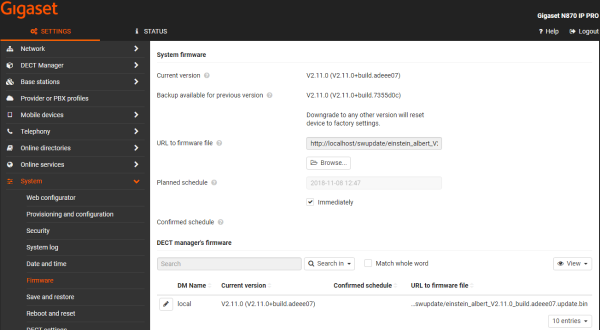
- Click Browse... and select the firmware file from your computer‘s file system.
- Click Upload to upload the firmware file.
- When ready, the pop-up "Press SET to start update schedule" will appear.
The URL to the firmware file will change to the local storage: http://localhost/swupdate/<firmwarefile> - Select Immediately if you want to start the update now.
- Scroll down and press SET
- The firmware update will start after a few minutes.
3. Enable the MQTT interface
Application servers can communicate with the DECT system via the MQTT protocol. Dependent on the chosen Alarm server, one of the connection methods listed below is used.
The MQTT access can be configured via the:
- Web-interface
- Auto-provisioning
You can connect using:
- Pre-shared key (PSK) using port 8884 FAQ - Application server connection examples PSK
- Certificates using port 8885 FAQ - Application server connection examples Certificates
- Secure with username and password using port 8886 (Needs to be enabled) FAQ - Application server TLS connection using usernamepassword
In the web-interface go to: SETTINGS - Online services - Application servers
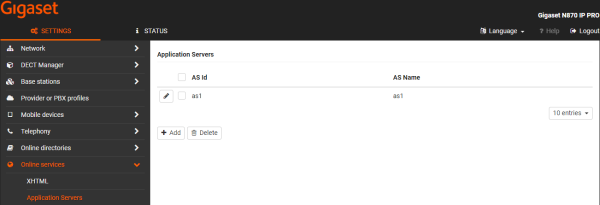
Create an Account for an Application server
You now can create an application server access.
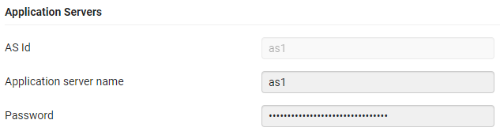
- Id: id for external clients are: "as1", "as2" ...
- Application server name (username) (At least one character is needed)
- Password (has to be at least 32 characters using hexadecimal digits only: 0 1 2 3 4 5 6 7 8 9 a b c d e f A B C D E F)
The following example shows you how to create an Application server account via auto-provisioning.
<provisioning version="1.1" productID="e2">
<nvm>
<oper name="set_external_client">
<param name="Username" value="as1" />
<param name="Password" value="123456789012345678901234567890aB" />
</oper>
</nvm>
</provisioning>
4. Register an Gigaset PRO handset
You need to register an AML supported Gigaset PRO handset.
The functionality depends on the used Gigaset PRO handset and the used software version.
R700H / S700H / SL800H
For these handsets, we improved the software to have the maximum AML functionality and further improvements are planned.
It is important to use the latest handset firmware: Firmware SL800H S700H R700H PRO
You can upgrade the handsets via:
5. Add an Messaging / Location license
If you want to use messaging and or location functionality, a license per handset is needed. There will be one license enabled by default that you can use to test AML. If you sell the system to your customer and you need 10 handsets that support AML, you need to buy the license for 10. The first enabled test license is then also a paid license.
- MESSAGING License N670/N870 (License per handset) S30852-H2714-X11
- LOCATION including messaging License N670/N870 (License per handset) S30852-H2714-X21
Only the handsets that need this functionality needs a license.
Per handset you can enable/disable the messaging and/or location feature.
If no licenses are available, this feature can not be enabled.
How to order/activate a license:
- In the web-interface go to: Status - Overview
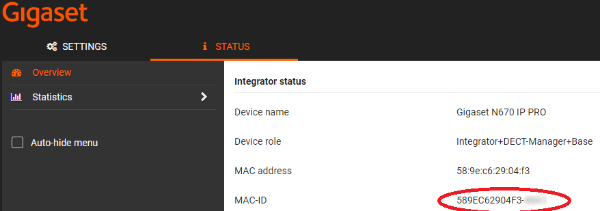
- Copy the MAC-ID, this is the MAC address of the device with a 4 digit code
- Order the required licenses using this MAC-ID, you will get an License file back from Gigaset
- The license can be updated via:
- Manual upload in the web-interface:
Go to: SETTINGS - System - Licencing and click on Browse to upload the license file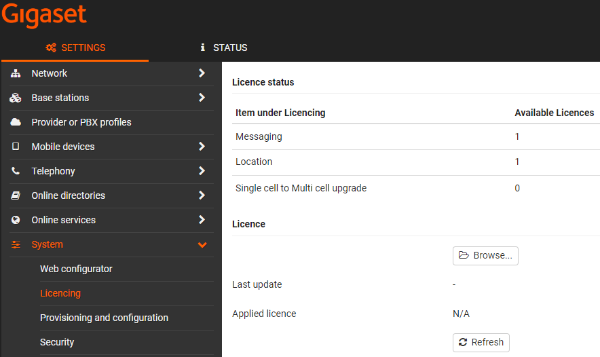
- From software 2.52 if the device has access to the internet, the administrator can click on Refresh and the device will check online for a new license.
- Manual upload in the web-interface:
Assign a license to an handset
The next step is to assign a license to an DECT handset.
- In the web-interface go to: SETTINGS - Mobile devices - Administration and select your handset
- At the bottom of the page you can enable/disable the license
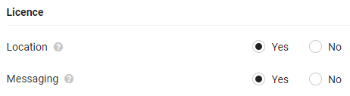
- If the DECT handset does not support one of these features, it will not be visible
- If you have no unused licenses available, it will be grayed out
- In the handset overview you can see if a license is activated for an handset via an icon:
- Location license is enabled:

- Messaging license is enabled:

- Location license is enabled:

6. Documentation